

Google is at it again. Working on Google Messages, the Alphabet subsidiary is giving users a new way of presenting information about a business that contacts you via Rich Communication Services (RCS). Android Authority, in Google Messages version messages.android_20260220_01_RC00.phone.openbeta_dynamic, was able to enable this new feature which uses the same style you’d see on personal profiles and employs it on businesses.
Another day, another improvement for the Google Messages app
Google is most likely seeking to have both personal and business profiles share the same interface for the sake of delivering a unified experience for users. The current business profile, which shows up when you press on a business that has been trying to get in touch with you via RCS, is made up of two different views, Info and Options. You can choose which view is open by selecting the appropriate tab on the profile.

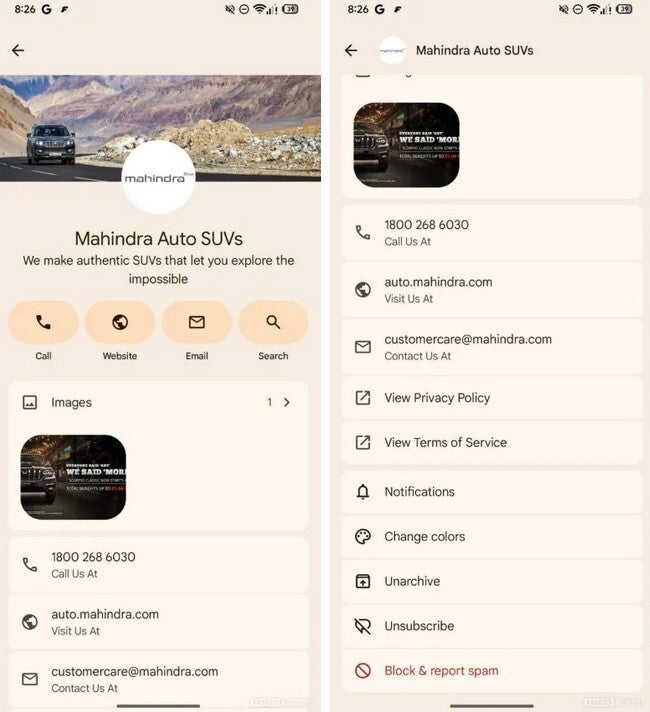
The new business profile for Google Messages resembles the personal profile. | Image by Android Authority
The top of the profile shows the company logo followed by information about the company’s business. Both views also have three icons that allow you quick access to the firm. One icon, when pressed on, will call the company on the phone. The second icon will take you to the company’s website, and the third one will allow you to send the firm an email. The Info view shows you the company’s phone number, the website address, and the email address. The Options view simply gives you the option to Block and report spam, View Privacy Policy, View Terms of Service, and Learn More.
The new look RCS business profile delivers a unified experience for Google Messages users
The new-look business profile shows a company logo, the name of the company, and the nature of their business on top. That is followed by four icon-filled “pills” that will call the company when tapped, open the company website when pressed, allow you to send the firm a message to their email account. A fourth “pill” allows you to conduct a search. There is room for an image related to the company followed by a “Call us at” phone number, a “Visit us at” web address, and a “Contact us at” email address.
This also has two pages, which you switch between by tapping a small arrow next to the 1> icon on the right side of the page. That will switch you to the second page which includes the phone number of the business, the website, and email address. On the second page you can choose from options such as: View Privacy Policy, View Terms of Service, Notifications, Change colors, Unarchive, Unsubscribe, Block & report spam.
Try Noble Mobile for only $10
Get unlimited talk, text, & data on the T-Mobile 5G Network plus earn cash back for data you don’t use.
Buy at Noble Moblie
Read the latest from Alan Friedman



GIPHY App Key not set. Please check settings