
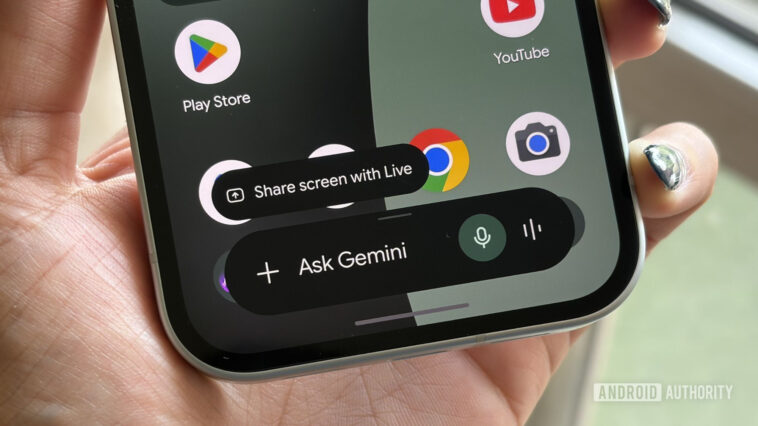
Shimul Sood / Android Authority
TL;DR

The Google Play connected app for Gemini is now rolling out.
You can use the new integration to discover apps, install apps, and make in-app purchases.
You’ll need to have “Keep activity” on in your Gemini settings to use the feature.
The Google Play Store hosts millions of apps that are just waiting for you to try. At the same time, the sheer number of apps is a bit of a double-edged sword. With all of those apps, it can make finding the kind of apps you’re looking for like searching for a needle in a haystack. To make app discovery a little easier, Gemini has a new integration that can help you sift through the noise.
Back in May, Google revealed that it would bring Play Store integration to its chatbot. The company has announced that this integration is now rolling out in the form of the Google Play connected app for Gemini. With the Google Play connected app, you’ll be able to discover apps, install them, and make in-app purchases all within your Gemini conversation.
For example, you could say something like, “Find a productivity app to help me with meal planning.” Gemini will then offer some recommendations for apps to install. Tapping on an app icon will take you to the details page on the Play Store for you to finish your installation. And typing something like, “Show me in-app purchases for (App Name)” or “Buy a Google Play gift card” will allow you to make digital purchases.
Before you head off to try it for yourself, there are a few requirements to use the feature. Google says you’ll need to be 18 or over, have the Google Play Store app on your Android phone, be signed into Gemini with a personal Google Account, and have “Keep Activity” turned on in your Gemini settings.
Connecting Google Play to Gemini is a fairly simple process. You’ll just need to open the Gemini app, make sure you’re signed into the same account you use for the Play Store, and ask Gemini to find an app from Google Play. If it’s not already connected, Google says Gemini should give you the option to connect with it. You’ll just have to follow the on-screen instructions from there.
Thank you for being part of our community. Read our Comment Policy before posting.




GIPHY App Key not set. Please check settings