

Apple has included a new battery feature in iOS 18 that comes in handy. When you have a charger running too slowly, open the battery graph in the settings. If your phone is using a slow charger, you’ll see a warning in the form of an orange-colored line in the battery graph; that indicates the use of a slow charger. At this point, it is unknown what charging speed is needed to set off the warning.
It’s not too late to pre-order a new iPhone 16 model with Apple Intelligence support
The green bar in the graph indicates that the percentage of battery life remaining is between 20% and 100%. A yellow bar in the graph means that the low power mode has been enabled which automatically goes on under 20%. You can turn on Low Power Mode manually at any time by going to Settings > Battery and toggle on Low Power Mode. The red bar in the graph means that your battery is critically low and the phone could shut down if a heavy load is placed on the battery.
If you go to Settings > Battery > Charging, you’ll be able to employ the optimized battery charging. Set to 100% by default, the battery will stop charging at 80% and will then stop charging until, based on past times you used the phone in the morning, it starts charging again so you can have 100% battery power just when you need it. You can, with iOS 18, change the charge limits to 85%, 90%, and 95%.

Before this change, Apple let you set an 80% limit which does a great job to extend the life span of the battery inside your iPhone but does not give you the other choices needed to extend the battery usage during a particular day. After all, you might not want to start your day with your iPhone battery charged at 80%.
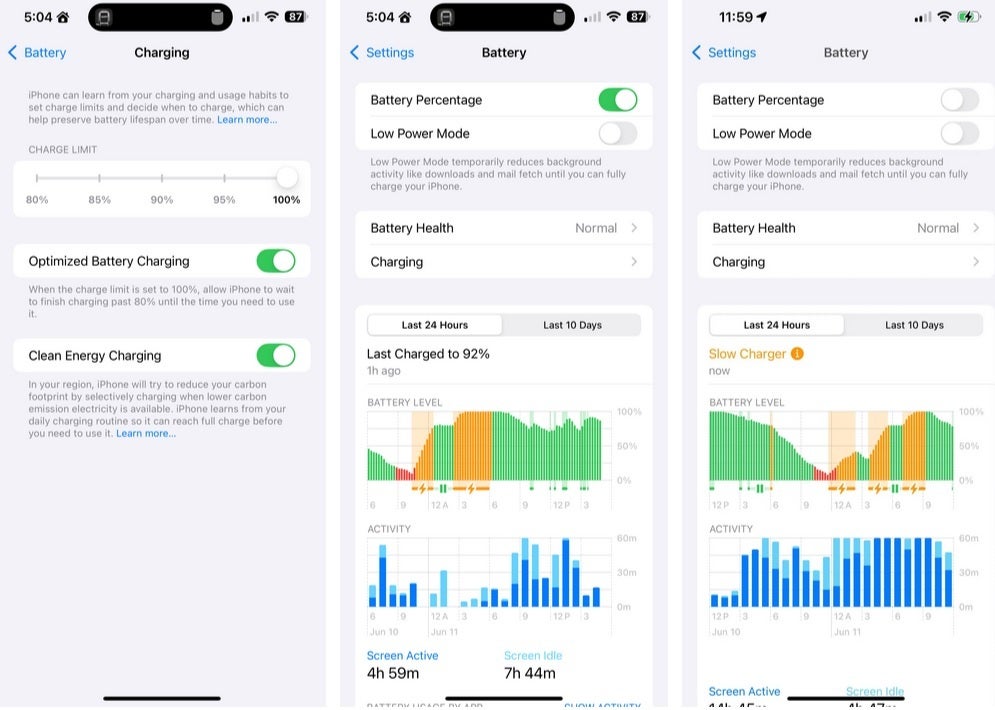
Updated battery graph and optimizations on iOS 18. | Image credit-9to5Mac
The battery icon on the iPhone status bar can be enabled by going to Settings > Battery >Battery Percentage (toggle on). The icon will be White when you are on the home screen and aren’t charging the phone, not in Low Power Mode, and not charging your iPhone. If you are charging it, the battery icon will be green. If you open an app, the icon will turn black. If Low Power Mode is enabled, the icon will be yellow. And if your iPhone has a red battery icon, it needs to be charged immediately or else it could shut down.
Knowing what your iPhone battery icon is telling you might prevent you from having to deal with a dead iPhone just when you need the device the most.



GIPHY App Key not set. Please check settings