
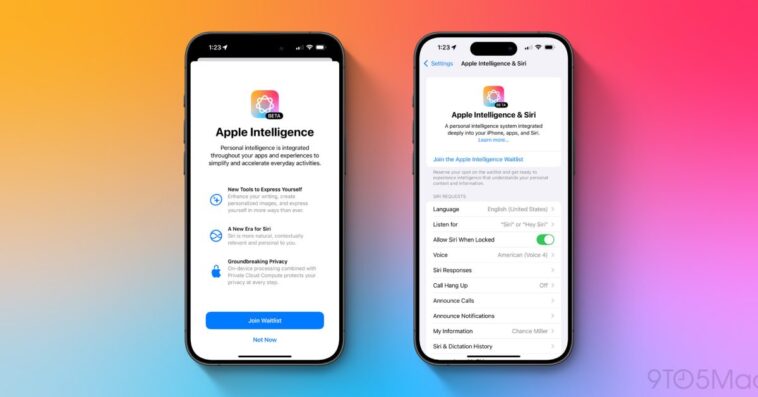
Apple released a very early preview of Apple Intelligence to developers at the end of July with the first iOS 18.1 beta. Now the to-be-released update is available for public testers. Here’s how to install iOS 18.1 beta for free and test out Apple Intelligence.

After launching iOS 18 for everyone on September 16, the first iOS 18.1 public beta has arrived so a new wave of users can try out what’s available with Apple Intelligence and more.
Below we’ll cover how to install iOS 18.1 as well as turn on Apple Intelligence. Check out what features are available in this beta build in our full coverage.
How to install iOS 18.1 beta and test Apple Intelligence beta
Public beta
Make a fresh backup of your iPhone or iPad
You may need to sign in with your Apple ID at beta.apple.com if you haven’t before
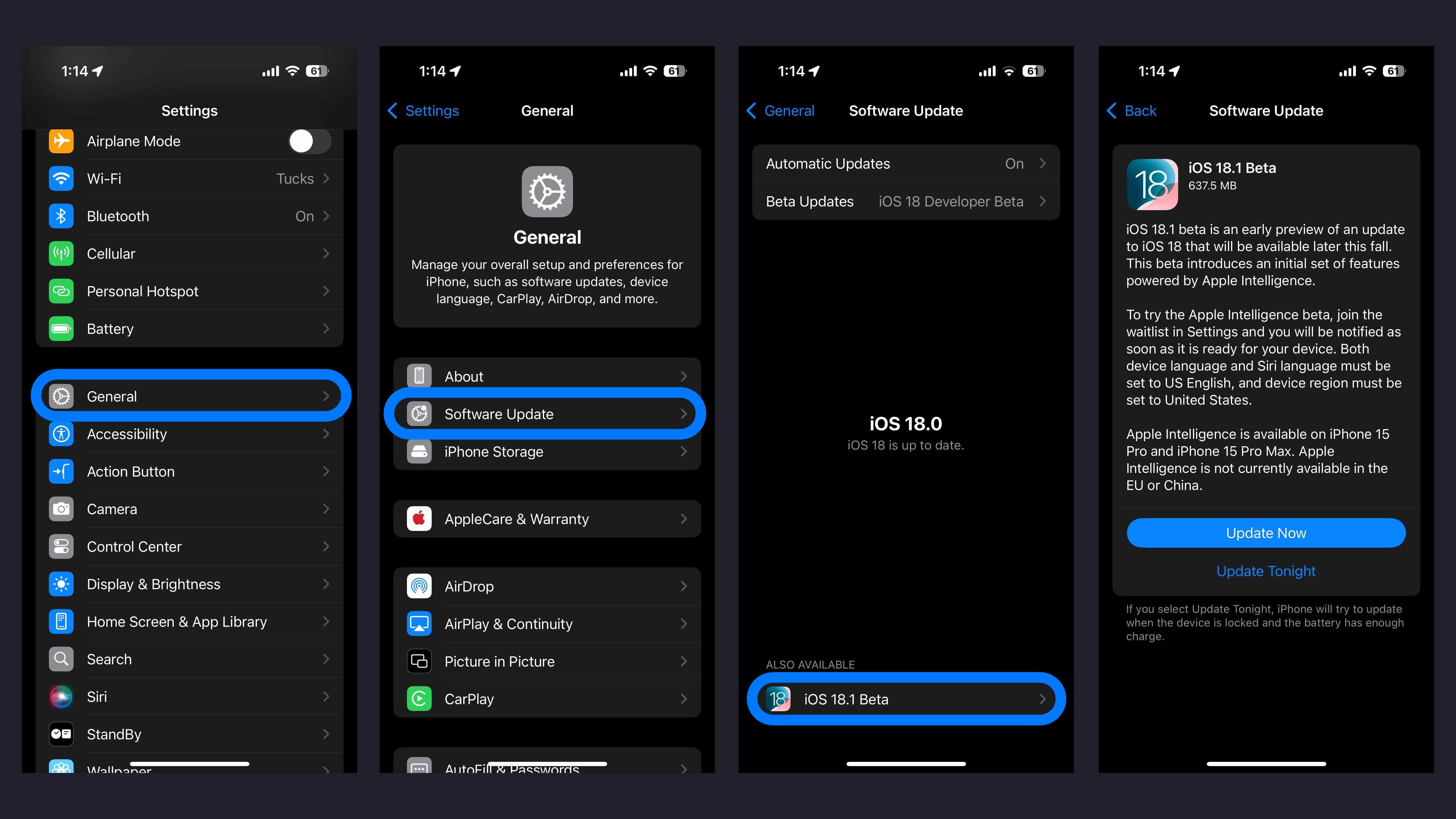
Launch the Settings app on your iPhone
Tap General > Software Update
Choose the Beta Updates button > iOS 18 Public Beta > Back
When it appears, tap iOS 18.1 Public Beta
If you need to change your Apple ID associated with the beta, you can tap that at the bottom
Choose Back when done
Look for iOS 18.1 Public Beta to appear and choose Update Now
If you’re not seeing the option to turn on beta updates or iOS 18 appear:
Try quitting and relaunching the Settings app
Sign in with your Apple ID at beta.apple.com for free, then try the above steps again
Developer beta
A paid Apple Developer account is not needed – but you may need to sign in with your Apple ID at developer.apple.com if you haven’t before
Make a fresh backup of your iPhone or iPad – important in case you want or need to downgrade (Apple recommends doing a Mac or PC backup)
Launch the Settings app on your iPhone or iPad (if you aren’t running iOS 18 yet, you may need to upgrade to that first)
Tap General > Software Update
Choose the Beta Updates button
Now choose iOS 18.1 Developer Beta (at the bottom)
If you need to change your Apple ID associated with the beta, you can tap that at the bottom
Choose Back when done
Look for iOS 18.1 Developer Beta to appear, choose Update Now
If you’re not seeing the option to turn on beta updates or iOS 18.1 appear:
Try quitting and relaunching the Settings app
Double check you’re running the iOS 18 beta
Sign in with your Apple ID at developer.apple.com for free and try the above steps again
How to turn on the Apple Intelligence beta
After installing the iOS 18.1 beta, open Settings
Tap the new Apple Intelligence & Siri button (just below Accessibility)
Choose to Join the Apple Intelligence Waitlist at the top
It may take some time before the available Apple Intelligence beta features are enabled on your device
Keep in mind this is the very first look at some of the first features in the Apple Intelligence beta
FTC: We use income earning auto affiliate links. More.





GIPHY App Key not set. Please check settings